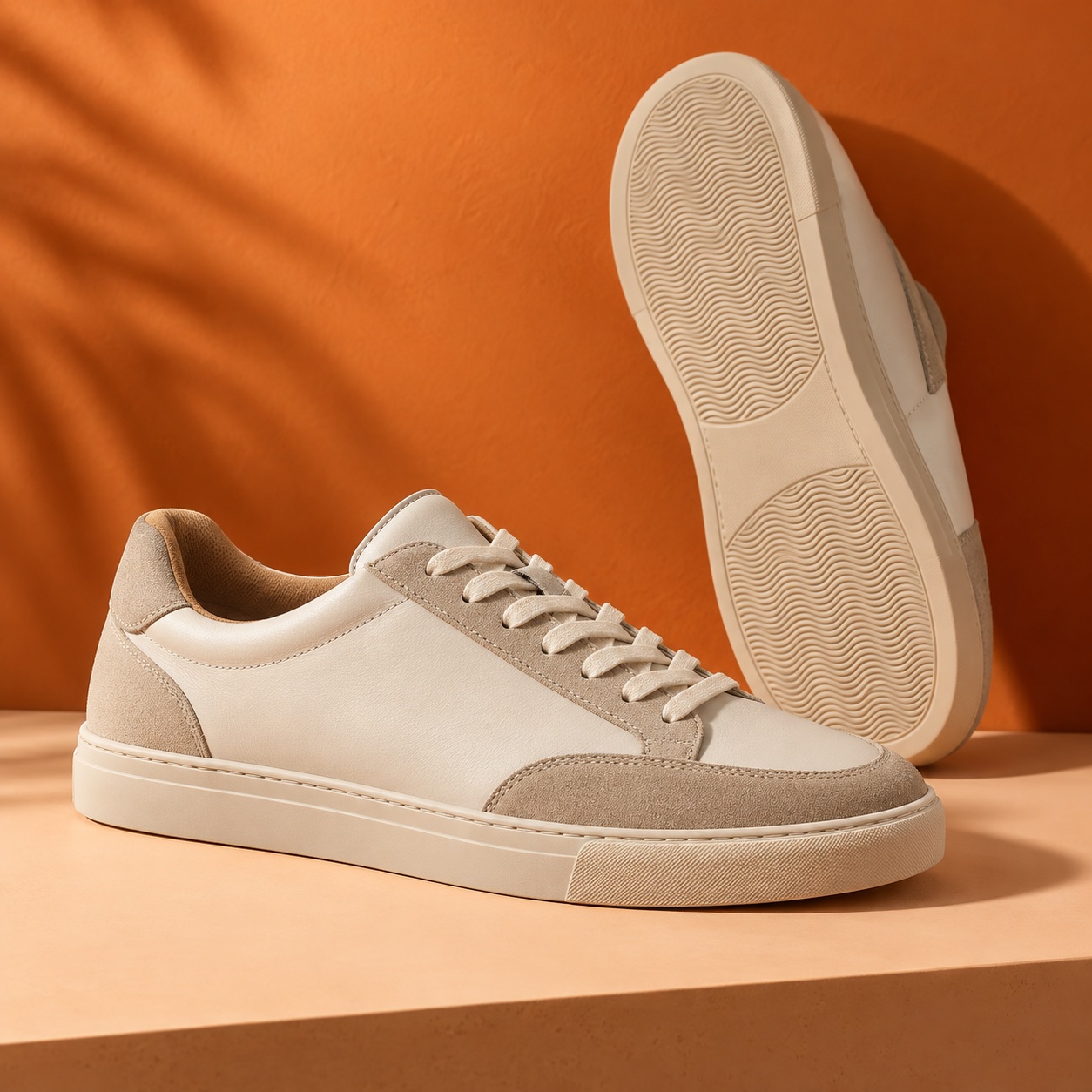
Give AI the direction
Ask Sendvio to apply your palette or describe the look you want. Review the result and refine it in the editor.
SENDVIO CREATION TOOLS
Create templates that feel unmistakably yours, from campaigns to forms and popups. Use AI, bring in your Canva designs and refine the colors, content and layout to match your brand.
Made for Shopify. Built for the way you create.
Create with AI. Refine every detail.
<section style="background:#fff7ef">
  <h1>Made for your brand.</h1>
  <p>Made for your everyday.</p>
  <a style="background:#ef5e20;
     color:#ffffff">
    Discover the collection
  </a>
</section>

START WITH YOUR IDENTITY
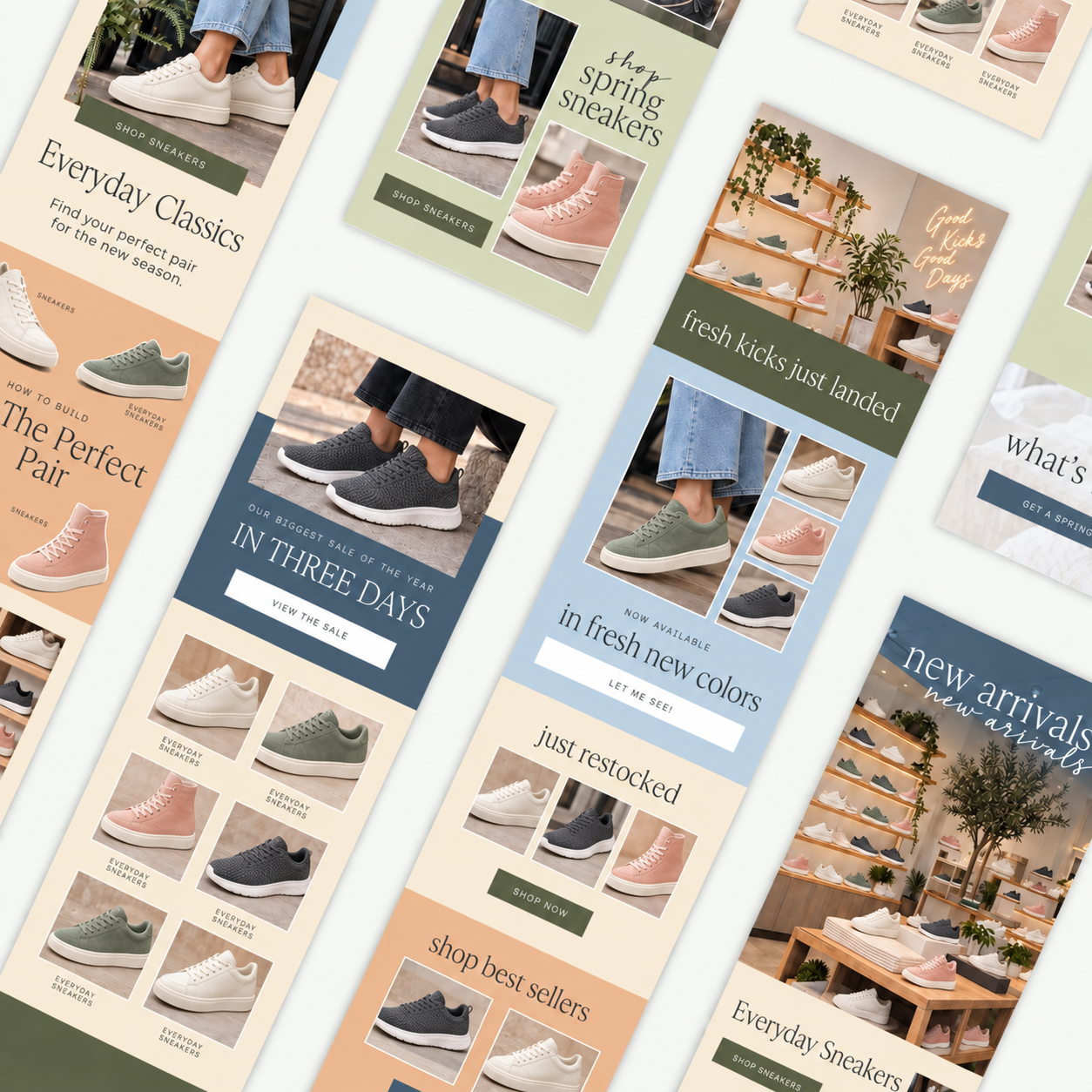
Set your logo, primary and secondary colors, store details and social links. New templates and AI-created content start with your identity, so you can spend your time on the message.
Set up your brand identityAsk Sendvio to apply your palette or describe the look you want. Review the result and refine it in the editor.
Bring your palette into the template, then fine-tune headings, backgrounds, accents and buttons.
Save your template branding for new designs. Updating those settings does not overwrite existing campaigns.
TEMPLATE DESIGN & PERSONALIZATION
Build the layout visually, refine individual blocks or use HTML when your design needs it. AI gives you a starting point; the editor gives you control.
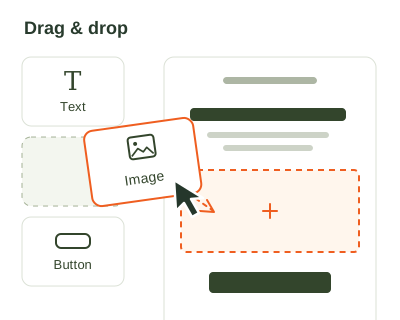
Build with sections and content blocks. Move text, images, products, discounts and buttons into the order your story needs.
Explore the visual editor ↗Format headings and body copy, choose email-safe fonts, adjust text size and alignment, and give your content room with spacing and padding.
A clear hierarchy for every messageStyle backgrounds, text, borders and calls to action. Refine button width, corners, labels and destination links to suit your design.
Your brand in the detailsAdd your imagery, reuse Shopify media or bring in designs from Canva. Generate images with Sidekick and place the right creative inside your template.
Explore your creative sources ↓Use HTML email blocks when you need a custom element. Combine them with your template and review the result before sending.
Extra control when you need itUse Shopify and Sendvio data to make your message relevant. Check a real customer's preview to see the content in context.
Make it personal ↓YOUR CREATIVE WORK, CONNECTED
Keep using the tools and assets you love. Bring them into your next template.
 Connect your Canva account
Connect your account and bring your designs into emails. Reuse creative work across Canva, Shopify media and Sendvio without rebuilding your brand from scratch.
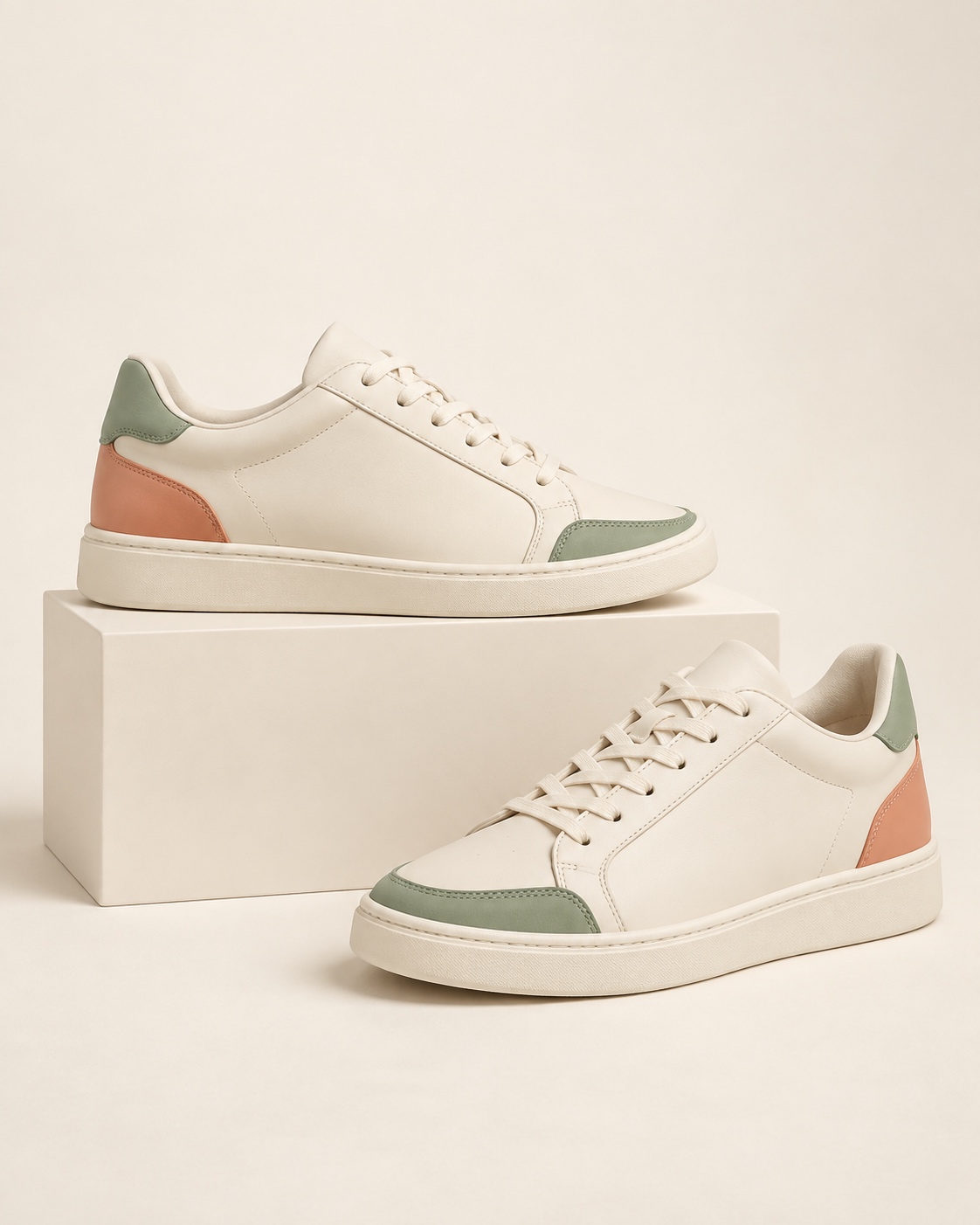
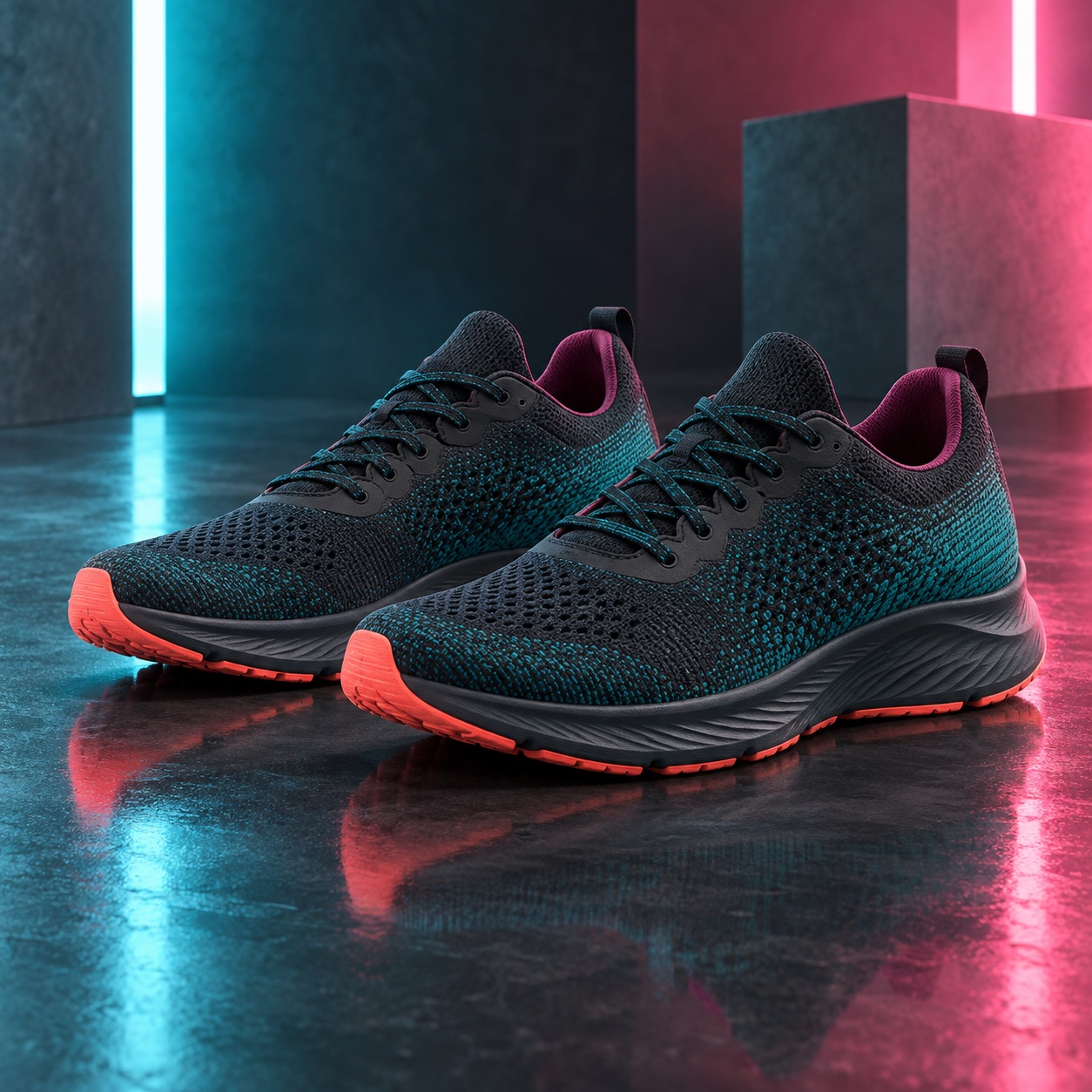
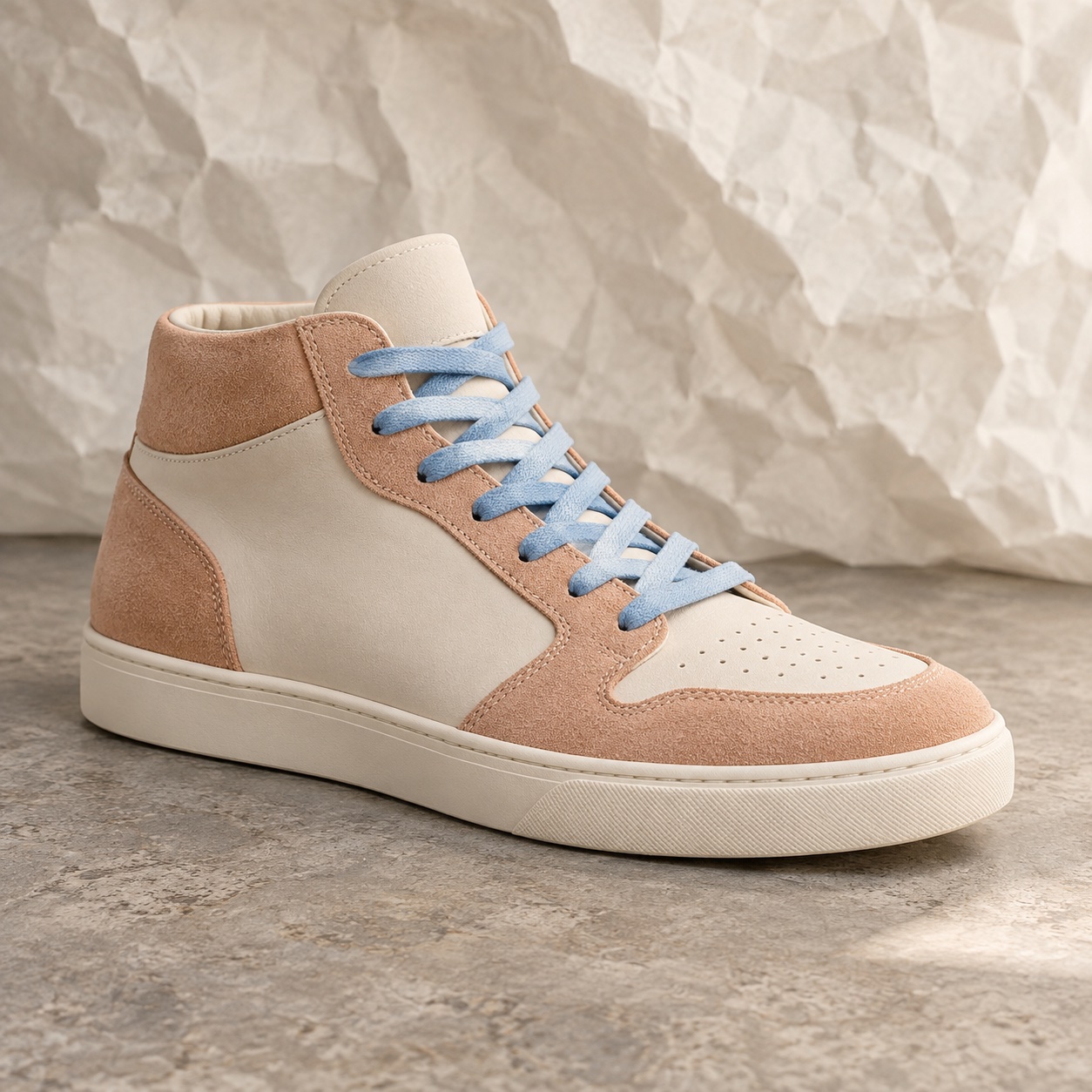
Use imagery from your store, add your own assets or ask Sidekick to generate something new. Keep your product story, campaign copy and visuals together as you refine the design.
Explore Sendvio AI ↗PERSONALIZED CONTENT, PRODUCTS & OFFERS
Connect the design to your store and the people reading it. Add products from your Shopify catalog, build an offer around a discount and personalize content with customer data.
Learn about content blocks ↗Preview with customer data to check the greeting and personalized content.
Select the products to feature with product blocks connected to Shopify.
Add discount content and links, then verify the offer and destination before launch.
Learn about discount links ↗ONE CAMPAIGN, MULTIPLE LANGUAGES
Create and edit language versions within the same campaign. Keep your design and offer consistent while adapting the subject, preview text and message to your audience.
Explore multilingual creation ↗Your next favorite.
Tu próximo favorito.
Votre prochain favori.
Different words. The same unmistakable identity.
REFINE IT. REVIEW IT. REUSE IT.
Start from a template, reuse a previous campaign or describe your goal to AI. Edit the subject, preview text and email content together.
Create a campaign ↗Check desktop and mobile previews, review personalized content and send a test to your own inbox. Open it on your phone and check the links.
Preview and test ↗Use your content in a campaign or edit an email inside an automation. Review recipients and sending settings before scheduling or activating it.
Edit an automation email ↗No. Start with a template or AI-generated content, then use the visual editor to arrange and edit blocks. HTML blocks are available when you want more control.
Yes. Edit the copy, layout, colors, imagery, products, buttons and language versions. You review the result and decide when it is ready to send.
Yes. Connect your Canva account to use your designs in Sendvio templates. You can also work with Shopify media and generate new imagery with Sidekick.
Saved template branding is the starting point for new templates. It does not overwrite existing campaigns. Open an existing template in the editor to apply the changes you want.
Read the template branding guide ↗Yes. Open the email step in your automation and edit its content. Review the message and workflow settings before activating the automation.
Read the automation email guide ↗Preview it on desktop and mobile, check personalization with customer data and send yourself a test. Verify product links and discount destinations, then review recipients and sending settings.
Review, schedule or send ↗CREATE YOUR NEXT TEMPLATE
Bring the brand. Bring the brief. Make every detail yours with Sendvio.
Explore plans and included tools ↗