
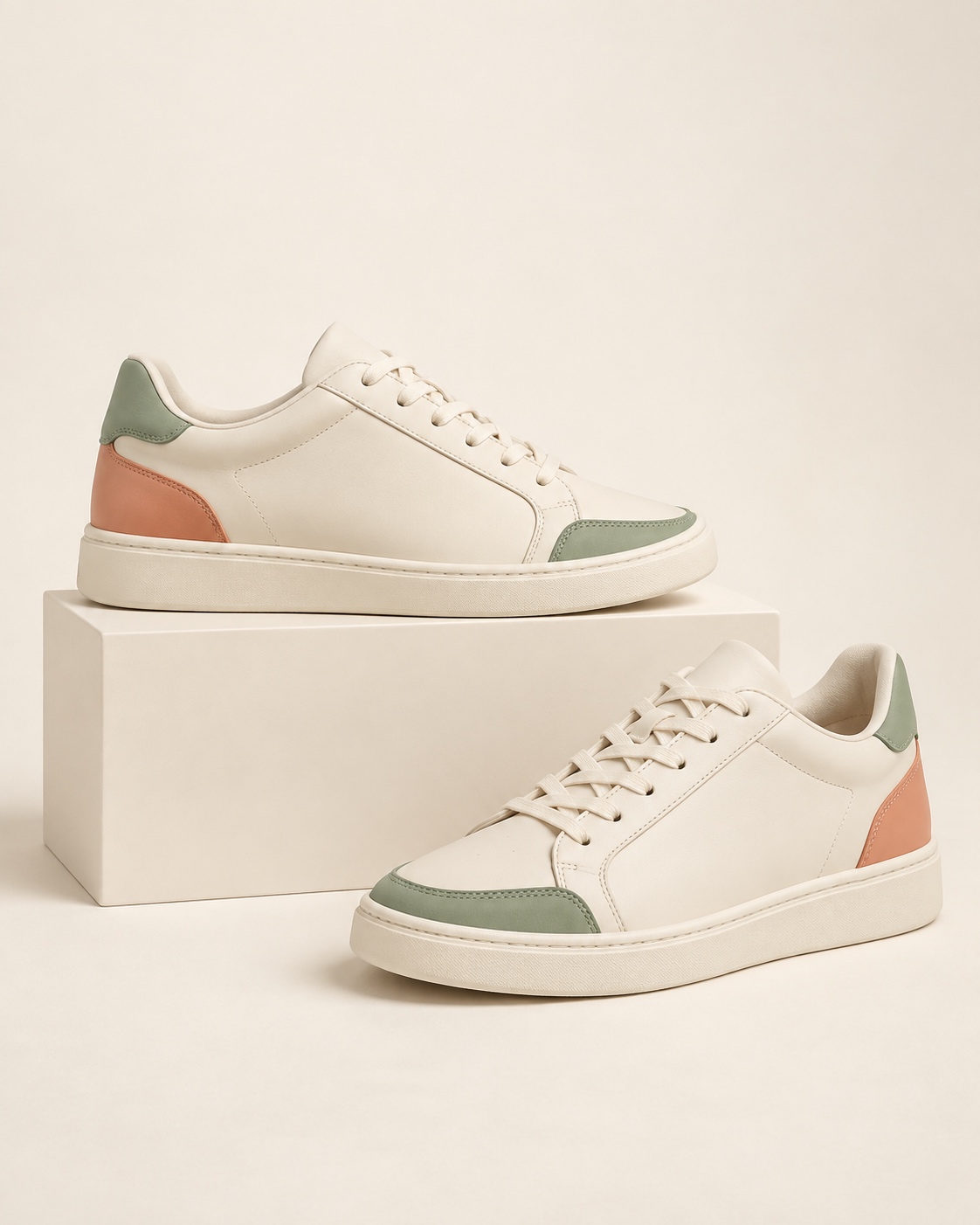
EVERYDAY COLLECTIONEveryday sneakers★★★★★4.8 · 56 reviewsAdd to bag
PRODUCT PAGE
Product Star Rating Badge
Display the average rating and review count beside your product.
PERSONALIZE
Choose star color and whether to display the review count.
STOREFRONT WIDGETS FOR SHOPIFY
Show customer reviews, answer questions, capture restock requests and grow your subscriber list. Four tools in Sendvio, with customization to make them feel at home in your brand.
Comfortable from the first wear. Love the fit!

Get an email when your favorite is back.
Notify me when availableNew arrivals and news, in your inbox.
01 / REVIEW WIDGETS
From a compact star rating to photo and video carousels, choose how customer feedback appears across your storefront.
Display the average rating and review count beside your product.
Choose star color and whether to display the review count.

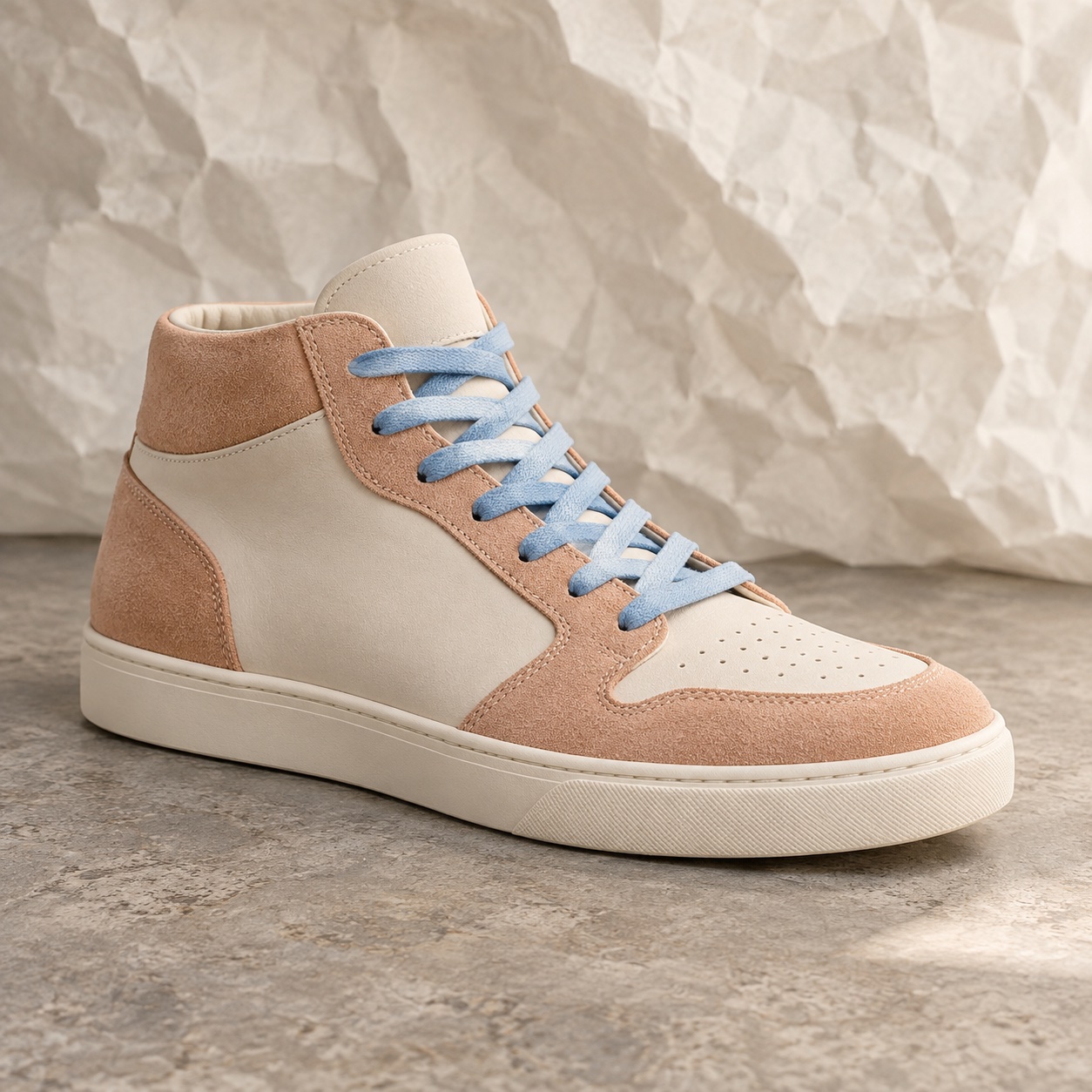
Comfortable from the first wear.
Bring ratings, review details and customer media together in one section.
Choose the page placement and edit the widget’s appearance.
★★★★★Example reviewA new favorite.★★★★★Example reviewComfortable all day.★★★★★Example reviewEasy to style.Let shoppers browse customer stories in a compact, horizontal display.
Choose responsive layouts with text, images, videos or a combination.
★★★★★Example reviewJust the right fit.★★★★★Example reviewA new favorite.★★★★★Example reviewComfortable all day.★★★★★Example reviewEasy to style.Give customer reviews room to stand out in a browsable grid.
Choose from responsive, customizable grid layouts.
Give visitors a one-click shortcut to the reviews section.
Adjust the tab’s position, color and label.
Use separate home-page and product-page versions of All-in-One Reviews, Review Carousel and Review Grid.
Explore review collection & management →02 / WHATSAPP CHAT BUTTON
Give shoppers a direct route to your business when they need help choosing a product or have a question about an order.
A direct chat entry point for your storefront. Your team manages the conversation in WhatsApp.
03 / BACK IN STOCK
Let shoppers register interest in unavailable products, then connect the request to a back-in-stock automation in Sendvio.
04 / SUBSCRIPTION FORM
Give visitors a simple way to subscribe to your marketing. Match the form to your storefront and bring new subscribers into Sendvio.
New arrivals, inspiring ideas and a closer look at what’s next.
By subscribing, you agree to receive marketing emails.MADE TO FIT YOUR STOREFRONT
Give every widget a clear role and a consistent place in your customer experience.
Build trust, start a chat, capture restock interest or grow your list.
Use the layout, appearance, text and placement settings available for your chosen widget.
Complete the widget’s theme setup and review the result on desktop and mobile before enabling it.
FOUR TOOLS. ONE CONNECTED PLATFORM.
Bring reviews, conversations and subscriber experiences together with Sendvio.